If you curate your package and platform data in we:kb, you might also be interested in setting up an automated delivery of your customers' COUNTER statistics (see https://www.countermetrics.org/) from your COUNTER-API directly into LAS:eR.
You may also validate your COUNTER-API and / or its data by the COUNTER group. How that works is described here: COUNTER-API-Validation
Institutions that use LAS:eR will then be able to access their own COUNTER statistics directly in LAS:eR. In order for this to work, the following parameters have to be in place:
- You curate your package(s) in we:kb (ideally via an Automation)
- You curate your Platform record in we:kb in which you filled out all relevant parameters (in red) for the Statistics (s. more information under 3. Creating and Curating one's Platform(s) ):
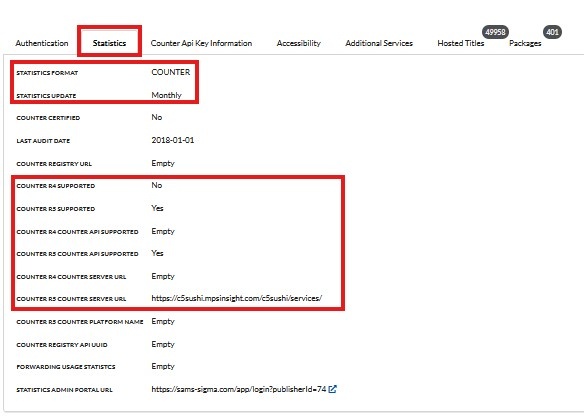
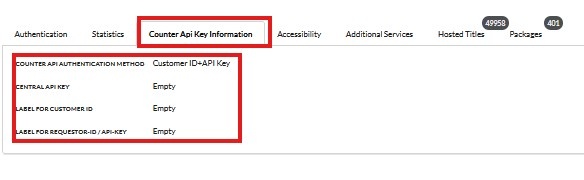
3. You support COUNTER 4 or COUNTER 5 as well as a COUNTER API - the general URL via which your Sushi Sever can be reached is the central starting point for the automatic statistics delivery into LAS:eR
4. In LAS:eR, a consortium or an individual institution using LAS:eR will then have to add certain parameters for each institution that wants to see their statistics. Those parameters can be provided by you:
- the consortium you work with or - if it concerns a non-consortial license - an academic institution has to connect your curated we:kb package to their LAS:eR license
- usually, two parameters have to be added to the institution's LAS:eR account: most commonly an internal Customer ID from your end for each institution + a COUNTER Key or COUNTER Requestor ID
→ the parameters added in LAS:eR will then make sure that each institution trying to access their statistics via your Sushi Server URL will be recognized by your API and will be given access to their statistics.
Therefore, the parameters you can provide a consortium/an institution with may vary and not necessarily be the ones mentioned above
5. Certain interfaces are only enabled for certain IP ranges, i.e. only computers from enabled networks may access the API. In this case, please ensure that the following IP addresses
are enabled: 193.30.112.31, 193.30.112.32, 192.30.112.34, 193.30.112.35 and 194.95.250.30. These are all existing LAS:eR instances.