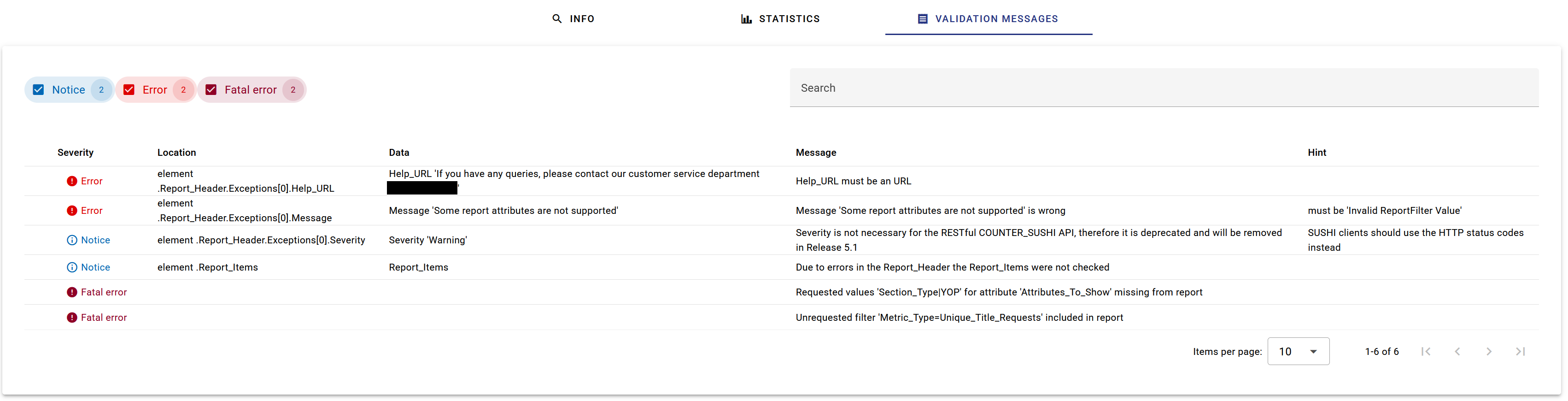
On this site https://validator.countermetrics.org/ you can submit COUNTER-data (either tabular reports or JSON-APIs) and let them validate according to the current COUNTER specification. The app creates a detailled validation report, enumerating errors and advices.
A user account is necessary in order to use the tool. This can be created without problems; only an email address and a password are needed.
After the login, the list of performed validations is being shown. This list is of course empty after an initial signup.

There are two buttons over the table: "Validate a file" and "Validate API". There you can submit COUNTER data for checking.
File validation
The button "Validate a file" brings you to the upload form where you can submit a file. This file may either be an Excel spreadsheet, containing a COUNTER report, or a JSON extract with the data in a JSON map. After uploading, the file is being checked and the validation report created. The validation report can be accessed from the table of validations.

API validation
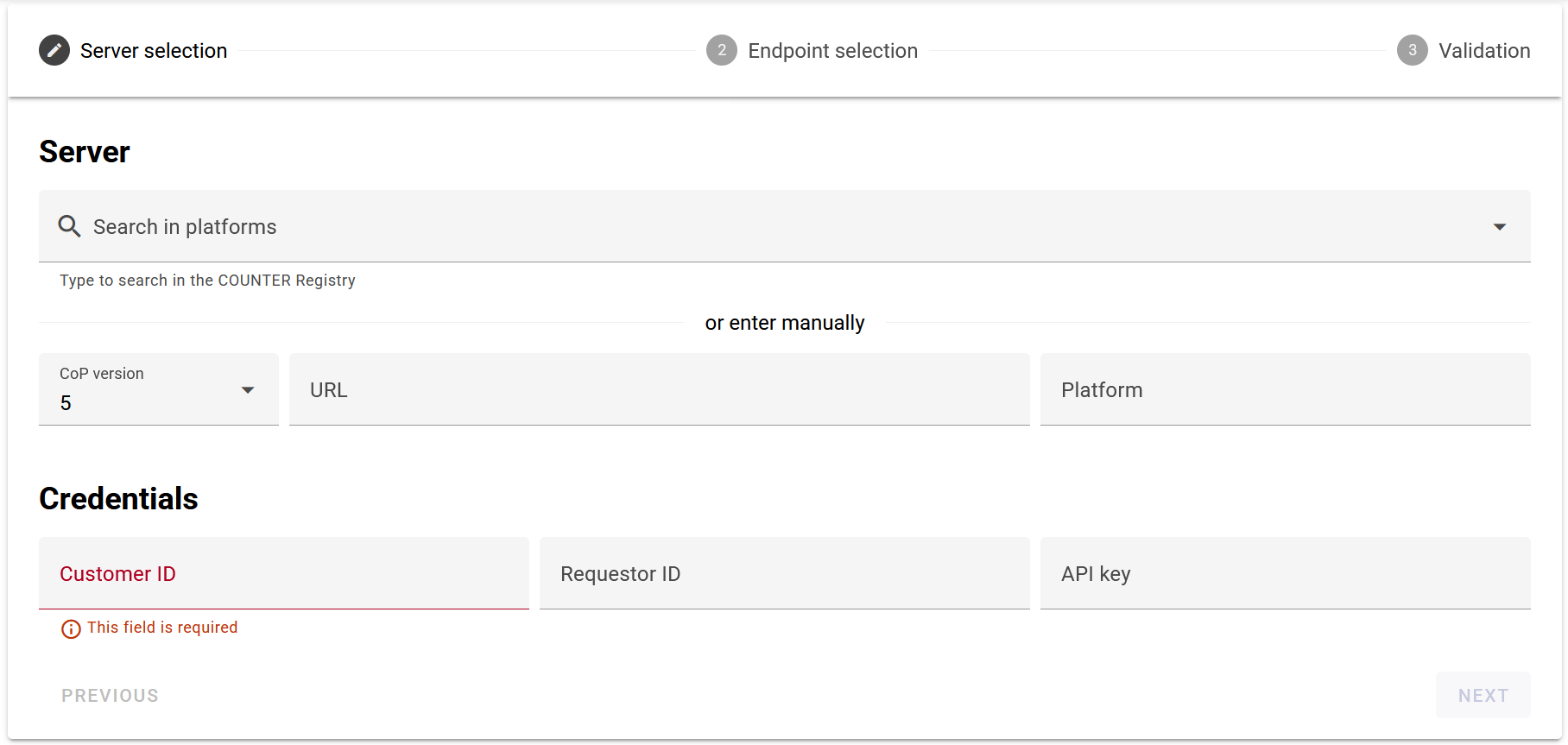
The button "Validate API" takes you the the API validation. The first step is the submission of the server data. If you registered your platform at the COUNTER metrics authority, you may select it here; otherwise, you may enter the parameters of your server manually:
- CoP version: the COUNTER version number your server should comply to
- your platform URL
- if your server requires that: the COUNTER name of your platform. ATTENTION: this does is not necessairly the same name as you entered it in we:kb! Ask your technician or your service provider if and if yes how your platform is being requested exactly.
- under "Credentials" you fill in a valid key pair of customer ID, requestor ID and - if demanded - an API key. Ask your technician or service provider which credentials are being needed exactly.
In the next step, you select the endpoint and maybe the report which you would like to test: at "Endpoint" the endpoint to be tested. If you select any other endpoint than "report", you are already set and you can trigger the validation.
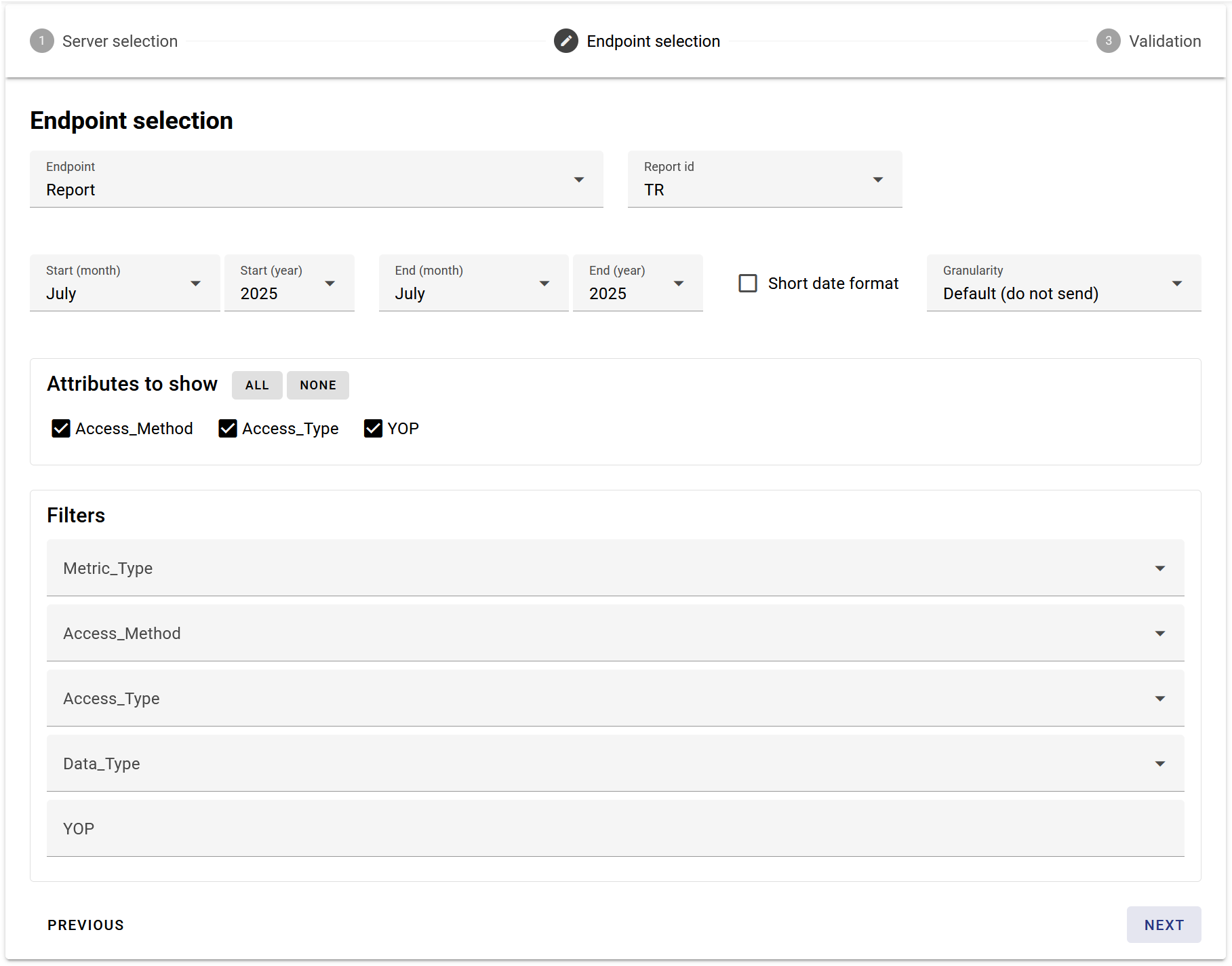
In the case you selected "report" as endpoint, the validator asks you, which report should be tested. You may define a time span from when to when the user statistics should range. In case you would like to test a master report (TR, DR, IR, PR), you may specify further parameters like metric, access type etc. After having checked your data you may trigger the validation.
Examining the validation
Your performed validations are now appearing in the table "My Validations". You may access the validation report by clicking on the entry under "Filename"; the report is stored on the server for seven days.

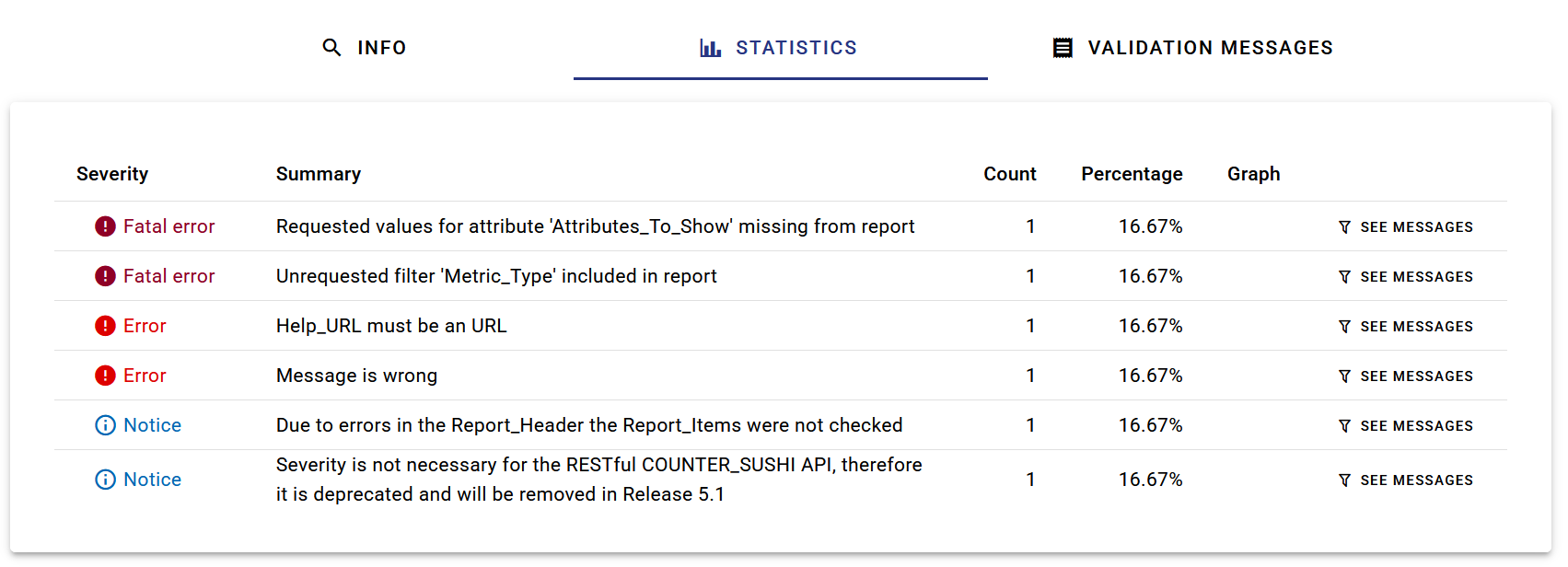
When you look at a report, you can list the errors in the tab "Statistics" where the errors and notices are listed (sorted by their severity).