You can create your own (or a new additional) platform via Create – Platforms on the left side. The following data fields should be filled in before you click on Create and Edit:
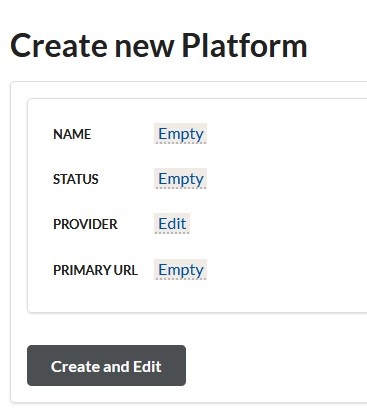
Name: name of the Platform, e.g. you can also just use the name of your URL (via Alternate Names you can again change the name of the platform later on)
Status: Current
Provider: connect your Platform with you already existing Provider record
Primary URL: direct „Jump Start“ leading to your Platform
After having created the platform, you may fill out the additional fields below.
3.1. Adding Authentication Information
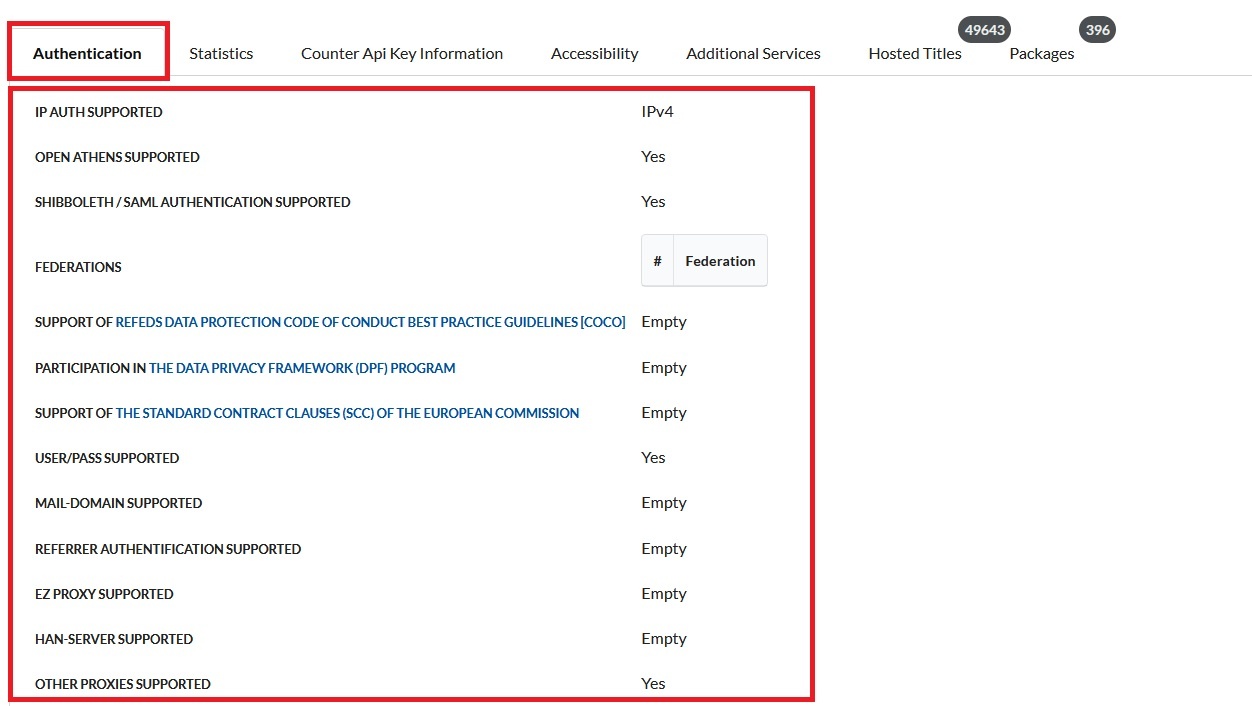
IP Auth Supported: Do you support IPv4 or IPv6 or both IP variants?
Open Athens: Yes/No, depending on whether you support Open Athens authentication
Shibboleth / SAML Authentication Supported: Authentication via a SAML procedure such as Shibboleth possible? → If you selected Yes, some new fields will open below.
Federations: Selection of possible Shibboleth federations. Multiple selection is possible.
If you meet one or more of the following three standards, you will make it easier for your customers to assess the transfer of
user information via Shibboleth:
Support of Refed's Data Protection Code of Conduct Best Practice Guidelines: Yes/No, depending on whether you comply with this code of conduct
Participation in the Data Privacy Framework (DPF) Program: Yes/No, depending on whether you comply with this Data Privacy Framework
Support of the Standard Contract Clauses (SCC) of the European Commission: Yes/No, depending on whether you comply with the standard contractual clauses for the transfer of
transfer of personal data to third countries of the EU Commission
User/Pass Supported: Yes/No, if users can access your platform via their own login
Mail-domain Supported: Yes/No, if authentication is possible using stored mail domains
Referrer Authentication Supported: Yes/No, if you support referrer authentication
EZ Proxy Supported: Yes/No, if you support authentication via EZ Proxy
HAN Server Supported: Yes/No, if you support authentication via HAN Server
Other Proxies Supported: Yes/No, if you support other proxies
3.2. Adding Statistics Information
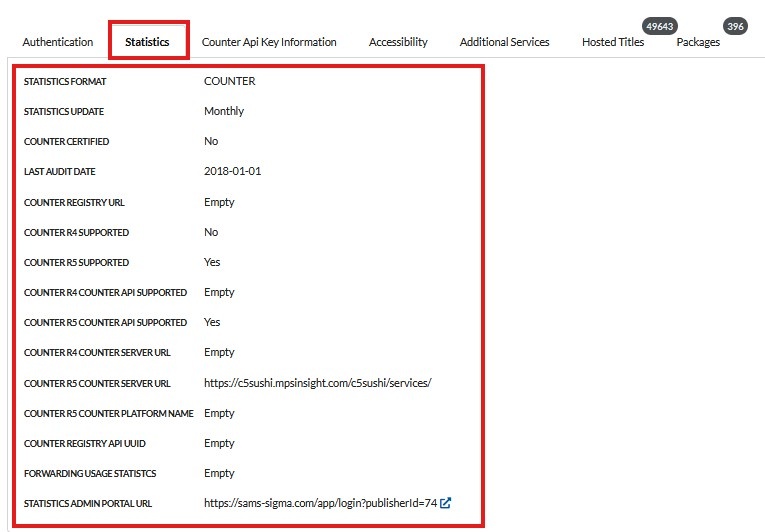
Statistics Format: which format do you provide your statistics in?
Statistics Update: in which rhythm do you update your statistics?
Counter Certified: Yes/No if you are COUNTER certified or not
Last Audit Date: add the date of your last COUNTER audit
Counter Registry URL: add your Registry URL if you are officically certified for COUNTER https://www.projectcounter.org/about/register/
Counter R4 Supported: do you support COUNTER 4?
Counter R5 Supported: do you support COUNTER 5?
Counter R4 COUNTER Api Supported: do you have a COUNTER API for your für COUNTER 4 data?
Counter R5 COUNTER Api Supported: do you have a COUNTER API for your für COUNTER 5 data?
Counter R4 COUNTER Server Url: URL for your COUNTER 4 Server
Counter R5 COUNTER Server Url: URL for your COUNTER 5 Server
COUNTER R5 COUNTER Platform Name: name of the platform in the COUNTER 5 interface, if available (see Platform entry in Table 3.y of the
Counter API reference https://cop5.projectcounter.org/en/5.1.0.1/03-specifications/03-counter-report-common-attributes-and-elements.html#report-filters-and-report-attributes)
COUNTER Registry API UUID: Identifier (UUID) of the platform in the COUNTER Registry API https://registry.countermetrics.org/ (you can find the
UUID in the registry ID behind /platform/)
Forwarding Usage Statistics: Yes/No, depending on whether you are generally able to forward user statistics to customers (regardless of the
automated delivery via COUNTER-API to LAS:eR)
Statistics Admin Portal URL: the URL leading to your organization’s Admin Portal or an area in which institutions might be able to download their
statistics themselves
3.3. COUNTER API Key Information
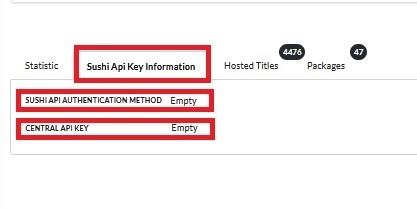
As a curator, if you are logged in, you will also see the COUNTER Api Key Information tab, which you should fill in for an automated delivery of
of institution-specific COUNTER statistics to LAS:eR:
COUNTER API Authentication Method: Choose between Customer ID + API Key, IP whitelisting, Requestor Key + API Key
or Requestor Key + API Key + Central API Key to specify which arguments are required for an automated statistics delivery
to LAS:eR are required.
Central API Key: Enter a central API key if you also use a general key under which your COUNTER API itself is secured.
This API key is only displayed to you as the curator and is technically passed on in the background to LAS:eR to transmit the
correct parameters for automated statistics delivery. If your COUNTER API is not specially secured, leave this field empty.
This applies in particular if your API assigns your customers an individual API key in addition to the requestor ID.
Label for Customer ID: specify how you name the column Customer ID when exchanging data via an Excel / CSV file
Label for Requestor ID / API key: specify how you name the column Requestor ID / API key when exchanging data via an Excel / CSV file
Annotations for setting up an automated statistics delivery to LAS:eR
3.4. Information concerning Accessibility
In the Accessibility tab, indicate the extent to which your platform and its content are accessible.
They are barrier-free if they meet the requirements of the European standard EN 301549, see “Accessibility background” below.
Add information regarding the platform and the viewers or players with which the content on the platform can be accessed:
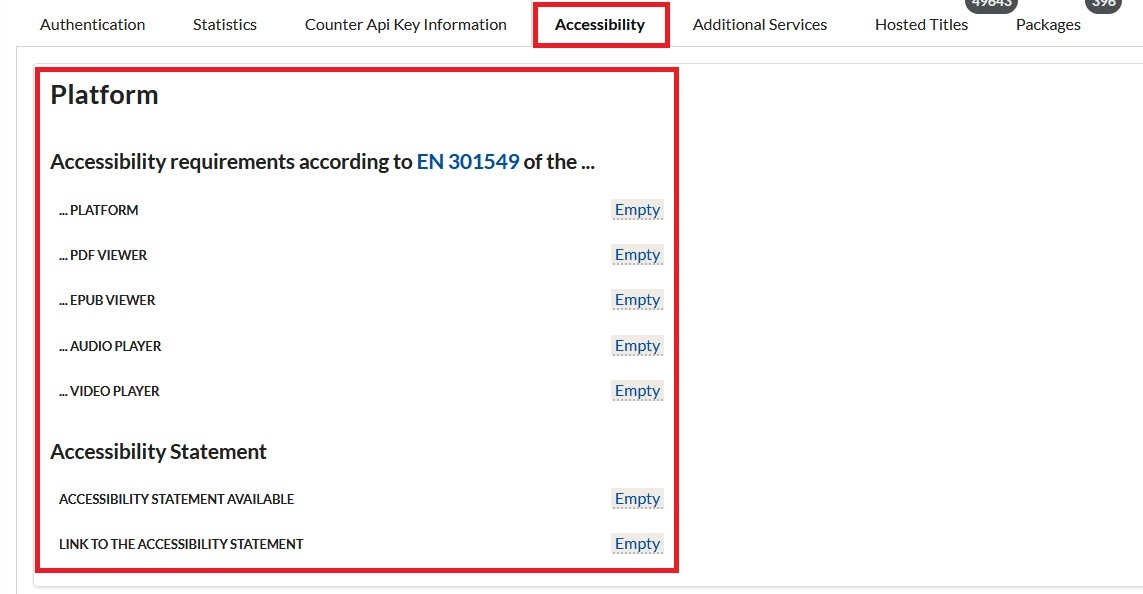
There are four items to choose from to indicate conformity:
- Compliant: fulfills all requirements of the directive.
- Partially Compliant: fulfills the requirements of the directive to a large extent. This is the case
if one or more criteria of the standards applicable to the format are only partially fulfilled. - Not Compliant: does not fulfill the requirements of the directive. This applies if one or more
criteria of the standards applicable to the format are not or only partially fulfilled. - Not Available: no indication because the format, e.g. audio player, is not offered at all.
More detailed information on the accessibility of the platform can be found in the Accessibility Statement, which each
platform and website must contain after the Accessibility Reinforcement Act (Barrierefreiheitsstärkungsgesetz) comes into force (June 28, 2025).
First check whether an accessibility statement is available on the platform and add a link to the accessibility statement in the free field
Link to Accessibility Statement and insert the direct link to the accessibility statement. Customers can look up the details there and see which barriers
may currently still exist.
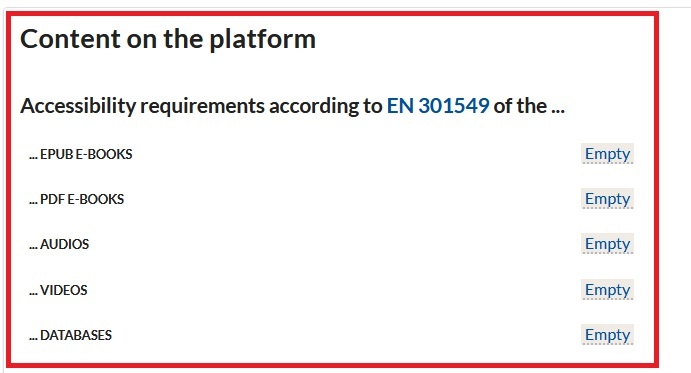
Information on the accessibility of the platform's content is provided according to the same pattern in which one of the four
conformity items is selected:
- Compliant: fulfills all requirements of the directive.
- Partially Compliant: fulfills the requirements of the directive to a large extent. This is the case if one or
criteria of the standards applicable to the format are only partially fulfilled. - Not Compliant: does not fulfill the requirements of the directive. This applies if one or more criteria of the standards
standards applicable to the format are not or only partially fulfilled. - Not Available: no specification because the format, e.g. audio player, is not offered at all.
3.5. Background Information regarding Accessibility
On June 28, 2025, the Accessibility Reinforcement Act, which is based on the European Accessibility Act, comes into force. It obliges
numerous providers to offer accessible services and products. This also includes the publishing industry. The Börsenverein
of the German Book Trade has published the relevant laws and ordinances on its website and the key regulations for publishers in its dossier on accessibility (Dossier zum Barrierefreiheitsstärkungsgesetz)
on the Accessibility Reinforcement Act.
The specific criteria that must be met for individual products are set out in the European standard EN 301549 for
websites/platforms (europäischen Norm EN 301549), digital documents, hardware and software. EPUBs are also subject to EPUB Accessibility 1.1
(see Börsenverein guidelines Leitfaden des Börsenvereins) and the PDF U/A 2 standard for PDFs PDF U/A 2-Standard.
Detailed instructions on test procedures and the individual test steps have been developed in Germany for the web, mobile apps and
software:
- Prüfschritte für Webauftritte (test for websites)
- Prüfschritte für Apps (test for apps)
- Prüfschritte für Software (test for software)
To check the accessibility of PDFs, the PAC test PAC-Test is the most recognized test tool in German-speaking countries.
3.6. Additional Platform Services
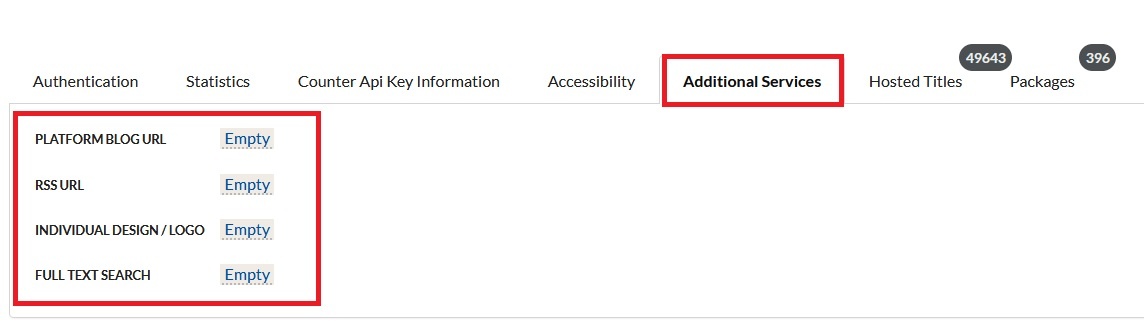
Platform Blog URL: If you run a blog on your platform, you can link it here
RSS URL: If you operate an RSS feed on your platform, you can link it here
Individual Design/Logo: If it is possible to add individual logos/designs from institutions accessing on your platform, enter Yes here
Full Text Search: Yes/No, depending on whether a full text search is available on your platform