Via Create – Packages you can create new packages. In the entry mask you can choose the Name for your package, connect it to a Provider as well as Platform and select the Status Current. Afterwards, click on Create and Edit. Your Curatory Group is automatically added to this new package. All fields may still be adjusted flexibly at any time.
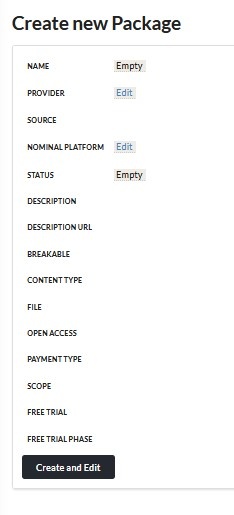
In a second step you can fill in information for the following data fields:
Library Suppliers: You can use Add Library Suppliers to add suppliers with whom you work. This is also possible via My Package Management
if you want to add the same suppliers to several packages at once (see My Package Management)
Description: give some more information on your product/package (this is basically an „About the Product“ information)
Description URL: add a general URL that can be accessed freely, leading to an area on your homepage in which you give some general product information for this package
Breakable: defines, whether the package always has to be licensed as a package or if individual titles/parts can be chosen on its own
Content Type: are there exclusively E-Books in your package (= Book)? Or only E-Journals (=Journal)? Does your package contain one or more databases (=Database)? Is the content of your package neither a database, an E-Book or an E-Journal, e.g. a film or music content (=Other)? Or is more than one of these media types included in the package (=Mixed)?
File: defines whether the package is basically an "All In" package, containing all titles from your platform (=Master File), or a Front File (=current and expected titles that may join the package in the near future) or if the package is a completed/fixed one without the latest titles (=Back File)
Open Access: should your package not include Open Access content, leave the field. Should there be OA titles as well as „normal“ paid titles in the package, you can choose Hybrid
Payment Type: for an exclusively paid package, choose Paid. Should you have a hybrid package, choose Mixed. For an exlusive OA package, choose Uncharged
Scope: is the package only available via a specific consortium (=Consortium)? Is it available globally (=Global)? Is a package only meant for an individual institution (=Individual)? Or for one or more countries (=National)? If you select National, you can also choose for which exact country the package is meant for in the field National Range.
Free Trial: here, you can state whether you genereally offer free trials for interested institutions
Free Trial Phase: if you offer a free trial, you can specify how long the free trial phase is generally offered, e.g. "30 days" or "2 months" etc.
Once the package has been created, you will see a new field below Scope: Archiving Agency
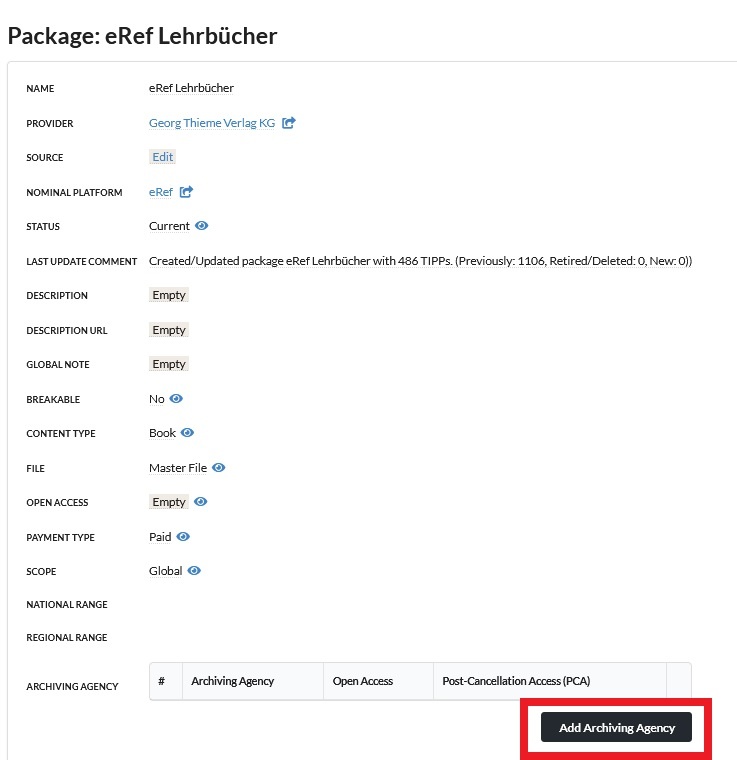
Click on Add Archiving Agency if you want to choose an Archiving Agency which you deliver your data to, e.g. Portico or CLOCKSS. Under Open Access you may specify if you also deliver OA titles to the chosen Archiving Agency. If you chose Portico as an Agency, you may also use the PCA field in order to specify whether you as a Provider named Portico as a perpetual access source through which your former subscribers may request ongoing access to content.
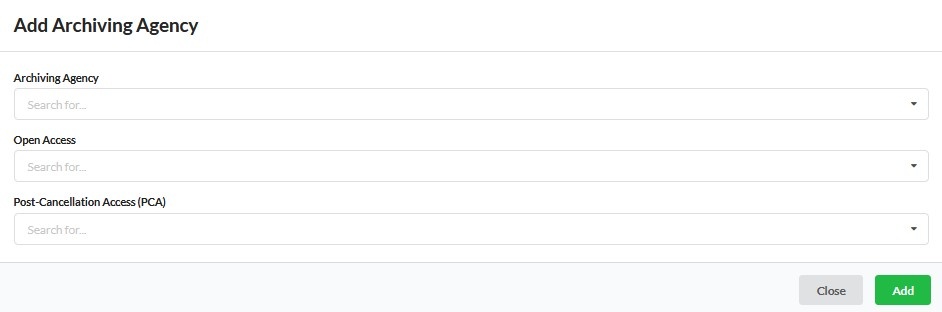
You may repeat this process to add as many Archiving Agencies as you like from the dropdown menu.
Under the fields with the grey background, you can also store valuable information for your package:

On the Identifiers level it is always integral to add an ID for each package that is used internally by the content provider itself (e.g. the Herdt publisher uses the ID „AYCR“ for their All you can read package). In order to add such an ID to your package, click on Identifiers and choose Add Identifiers. Search for the namespace Provider_Product_ID and add your ID. You can also add more than one ID if necessary.